Install on Windows
Download the Plexora installer for Windows, get past the SmartScreen warning and run setup.
The Windows installer sets Plexora up for your account only, so it needs no administrator rights. It needs Windows 10 or 11, 64-bit.
v0.0.31 · Plexora-0.0.31-windows-x64-setup.exe · 356 MB
How to use it
Open the installer
When the download finishes, open Plexora-<version>-windows-x64-setup.exe from your browser's downloads list or your Downloads folder.
Get past the SmartScreen warning
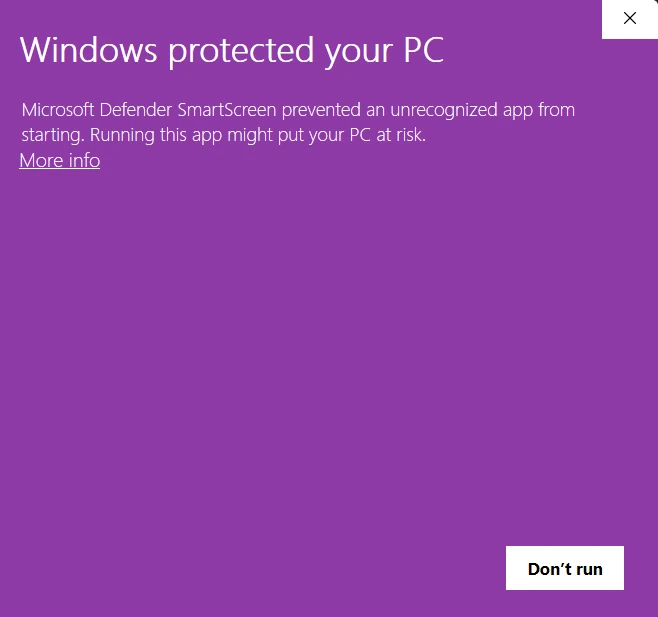
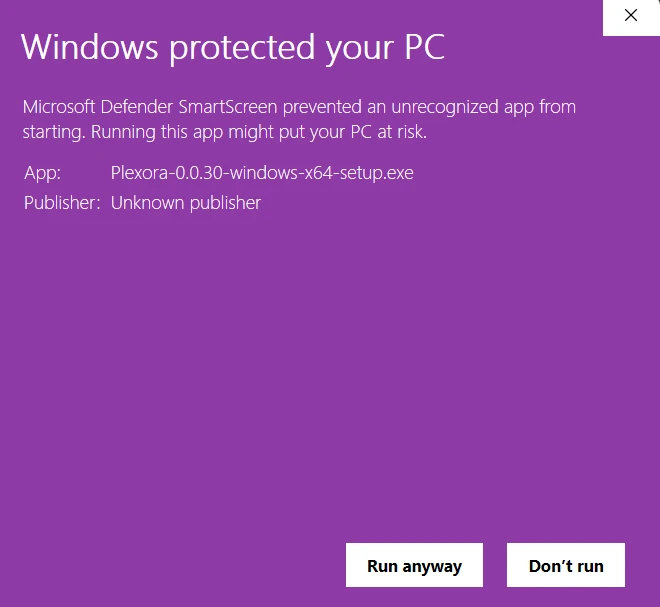
The installer is not code-signed yet, so Windows may say Windows protected your PC. Choose More info, then Run anyway. Not every PC shows this.
Check where the file came from
Choose Run anyway only for an installer you downloaded from this site or from Plexora's GitHub releases. If the file, or where you got it, looks unfamiliar, choose Don't run.
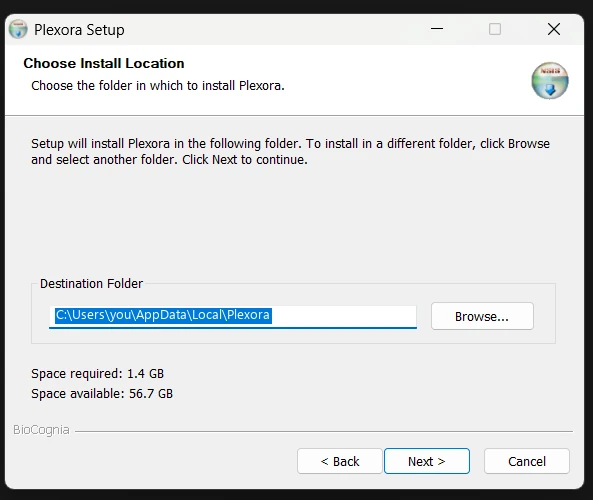
Choose where to install
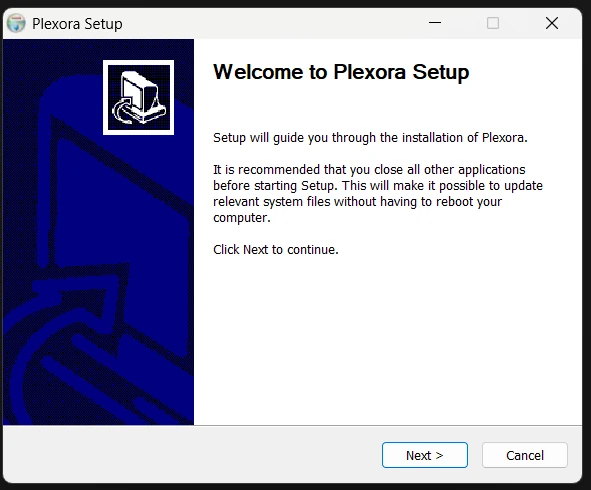
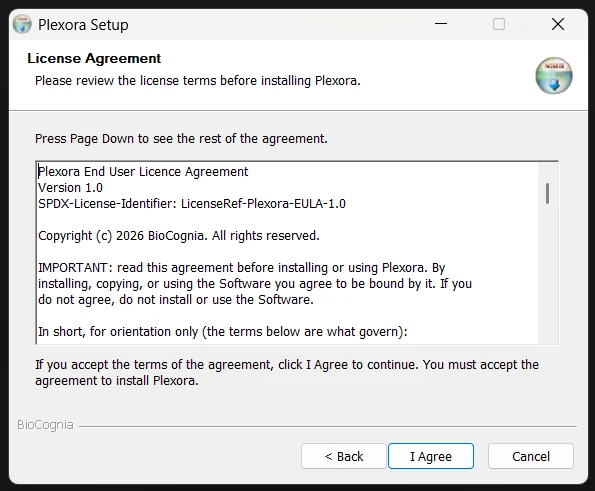
The suggested folder, C:\Users\<you>\AppData\Local\Plexora, is fine; Browse... picks another. Choose Next.
Wait for setup
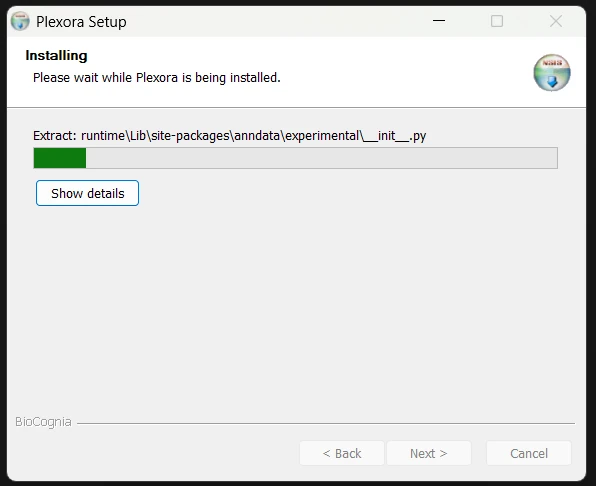
Setup copies Plexora's files and fills the progress bar. Leave the window open until it moves on by itself.
Finish
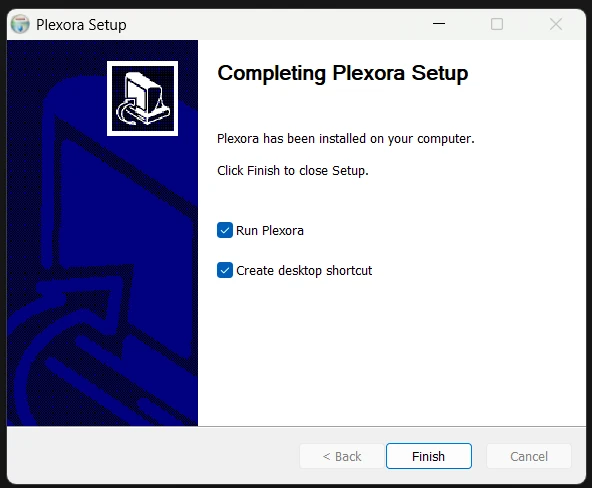
Leave Run Plexora ticked and choose Finish. Plexora opens on its home screen; continue with Your first image.
Tips
- Later, open Plexora from the Start menu, or from the desktop shortcut if you kept Create desktop shortcut ticked.
- Plexora's window uses Microsoft Edge WebView2, which Windows 10 and 11 normally include. If yours does not, setup downloads it, so stay online while setup runs.
- Help › Check for Updates… checks for a newer release.
- To remove Plexora, use Settings › Apps › Installed apps.
Related
Website or desktop app
What the Plexora website handles well, where the desktop app or a node beside the data is the better place, and the measured numbers behind each.
Install with pip
Install Plexora as a Python package in its own environment, for other Linux systems, servers, clusters and notebooks.