SLURM clusters
Let Plexora ask the scheduler for a job on your cluster and connect to it when the job starts.
On a SLURM cluster, Plexora logs in to the login node, asks the scheduler for a job, waits in the queue, and connects to whichever compute node the job lands on. Reading and computing happen on that node, next to the data.
How to use it
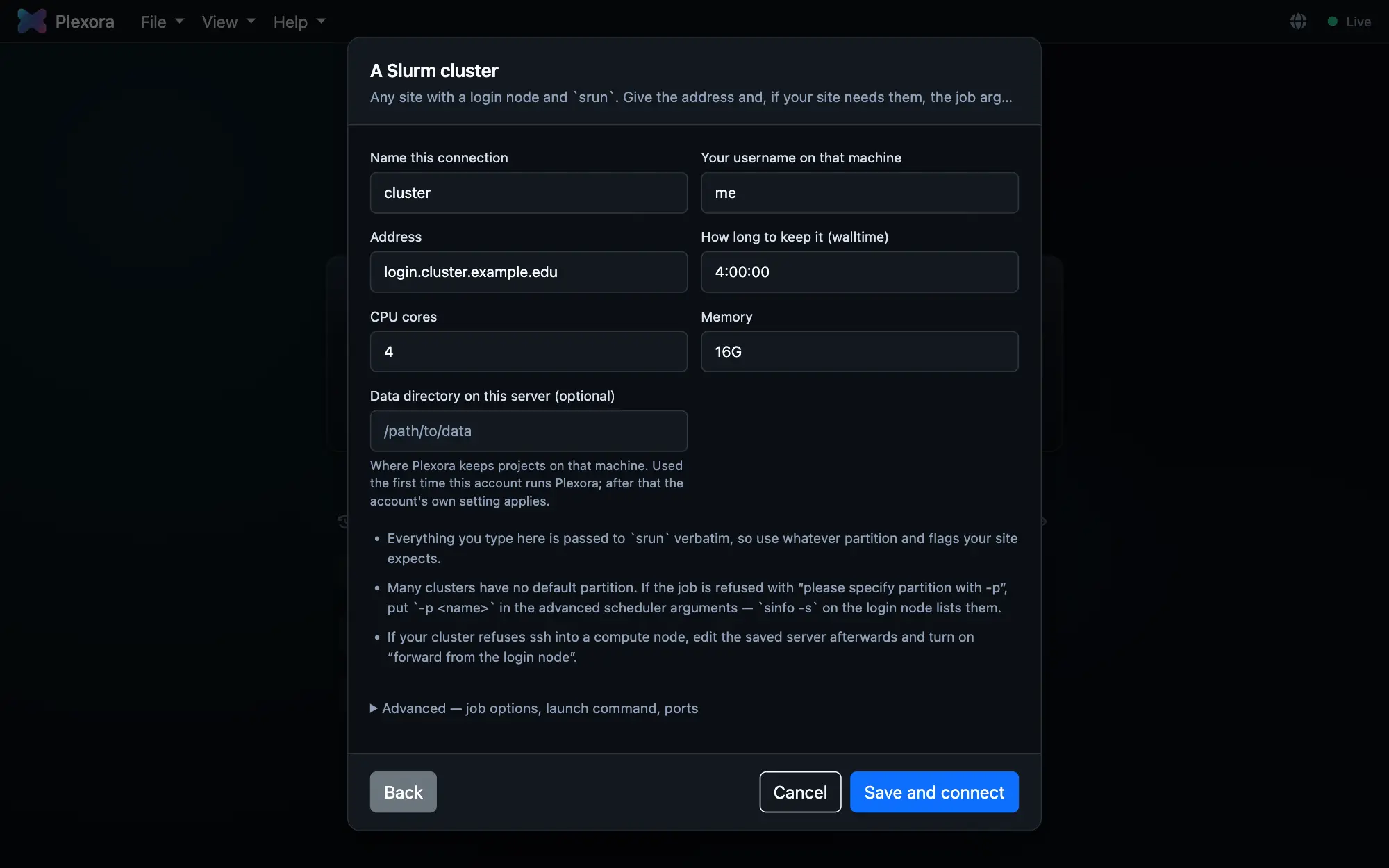
Choose A Slurm cluster
Open Add a server… (see Add a server) and choose A Slurm cluster, or your site under Additional presets if it is listed.
Describe the job
Give Address (the login node) and Your username on that machine, then the job: How long to keep it (walltime), CPU cores and Memory (4:00:00, 16 and 128G to start with). Anything else your site needs, such as -p interactive, goes in Advanced › Other job options; it is passed to srun as written, with the walltime, cores and memory added to it.
Connect and wait for the job
Press Save and connect. After Signing in, the dialog shows Waiting for the scheduler while the job is queued. Continue in background lets you keep working; the dialog comes back if the cluster asks for a password or a Duo push.
Work, then let it go
When the job starts, the server shows as Connected and its files open like local ones. Disconnect in Settings › Remote servers closes the connection.
From the command line
Everything above can also be done from a terminal; you do not need both. This one command queues the job and runs the whole of Plexora on the compute node, shown in your browser:
plexora connect [email protected] --srun "-p interactive -t 4:00:00 -c 16 --mem 128G"Add --save NAME to keep it as a saved server, and --bind-node where the site refuses SSH into compute nodes. See Connect from a terminal.
Tips
- Many clusters have no default partition. If the job is refused with "please specify partition with -p", add
-p <name>to Other job options;sinfo -son the login node lists the partitions. - If your cluster refuses SSH into compute nodes, edit the saved server and turn on Advanced › Forward from the login node.
- The walltime is a hard limit: when it runs out the job ends and the connection drops. Reconnecting starts a new job; your projects are untouched.