ROI
Draw regions of interest on the image, sort them into categories, and write which region each cell falls in onto the cell table.
ROI draws regions on the image (polygons, freehand shapes, rectangles, or outlines found by magic select) and keeps them with the sample. With a cell table, it can also label every cell with the region it falls in.
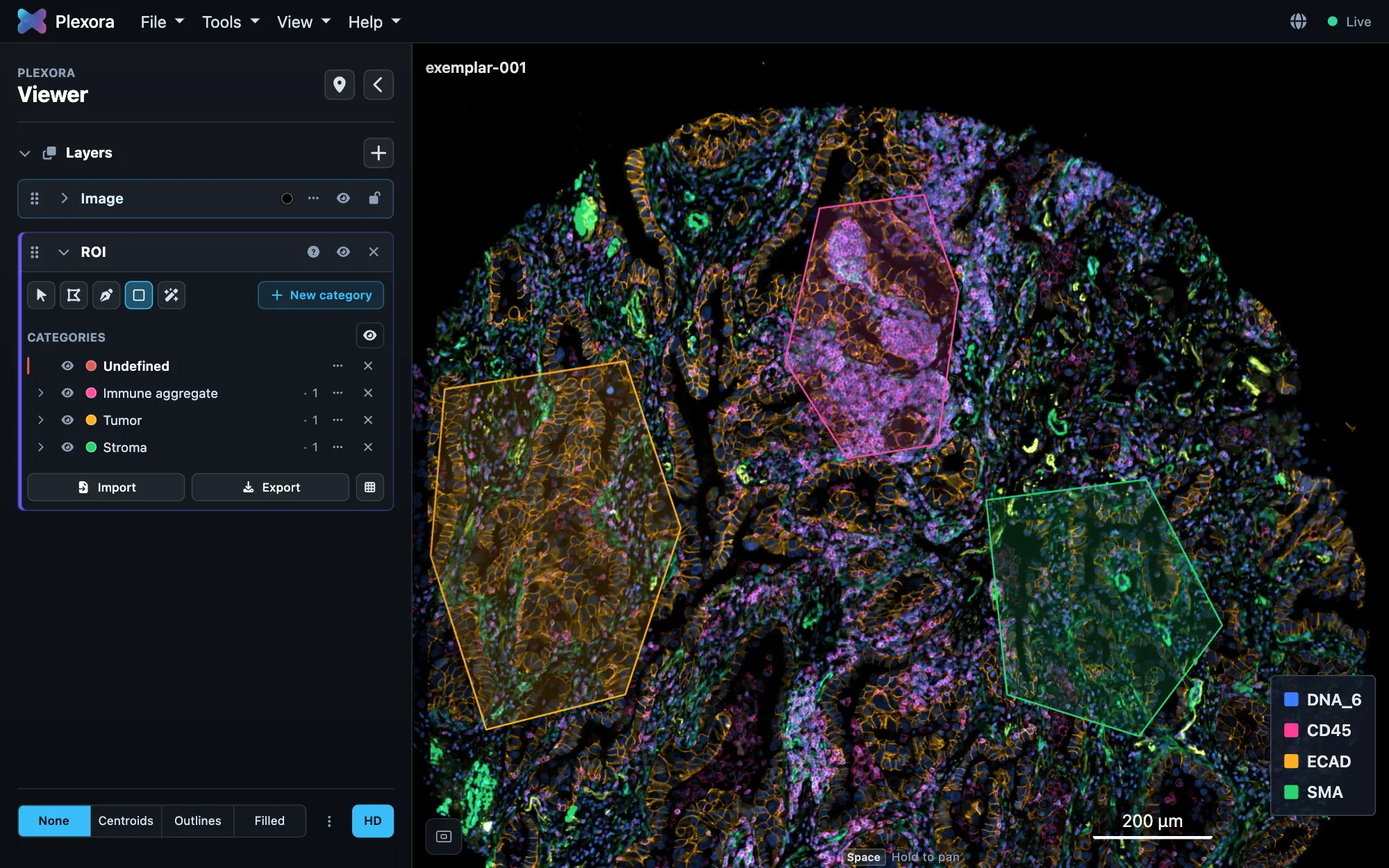
Open it: Tools › ROI. It works on any project; a region needs only the image.
How to use it
Pick a category
Every region belongs to a category, such as Tumour or Stroma. A new project starts with one called Undefined. Add your own by typing a name in Add new category and pressing Enter, then click a category to draw into it.
Choose a tool
While the ROI card is open, its tools sit in a bar at the top of the image: Select (V), Polygon (P), Freehand (F), Rectangle (R) and Magic select (E). None is chosen when the card opens, so dragging the image pans it until you pick one.
Draw
A polygon is a click per point, finished with Enter or a double-click. Freehand and rectangle are a press and drag. Hold Space to pan while a drawing tool is in hand.
Edit
With Select, click a region to select it, drag to move it, or drag a handle to reshape it. F2 renames, ⌫ deletes, ⌘Z undoes (Undo and Redo at the foot of the card do the same). A region's ⋯ menu renames, locks, hides, moves or deletes it.
Magic select
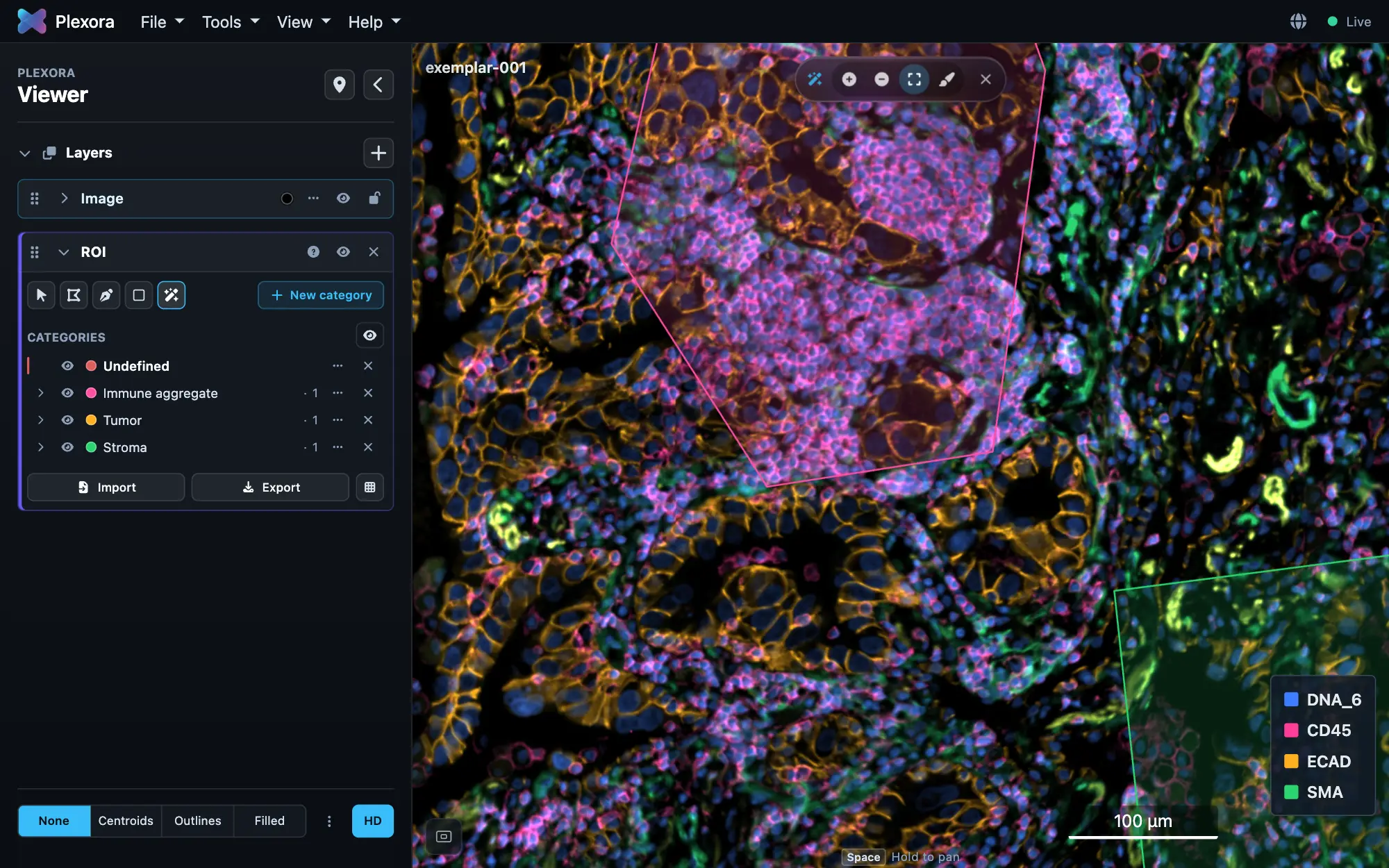
Click something on the image (a fold, debris, a tumour nest) and Plexora outlines it. Picking magic select opens its options beside the wand in the tools bar; they set how you point at it, and clicking the wand again puts them away:
- Add: click to outline; click again to grow the outline.
- Remove: click an area to take it out (or Shift-click in Add).
- Box: drag round a large object.
- Scribble: draw over a long or patchy object, or a loop round it.
Esc finishes the outline. The outline follows the channels and contrast on screen. The first use downloads the files magic select needs; after that it works offline.
Tips
- The eye on a row hides that region or category on the image; hidden regions are still saved and mapped.
- A locked region cannot be moved or reshaped.
- Regions belong to the image they were drawn on. Export them first if you want them on another image.
What it saves
Regions are saved with the sample as you draw, in Plexora's own storage. The buttons at the foot of the card take them elsewhere:
- Import reads regions from a GeoJSON file; Export downloads them as GeoJSON.
- Save writes them into the project's own AnnData or SpatialData file (shown only for those projects).
- Map to cells (the grid button, shown when there is a cell table) writes two columns onto the cell table: the category and the region name of each cell,
rois_categoryandrois_nameby default. A cell in overlapping regions gets both values joined with_; cells outside every region are left blank. It shows what it will write and asks before replacing existing columns.