Figure Builder
Capture views of the image and arrange them into a figure with scale bars, text, shapes and arrows, then export it as PDF, TIFF or PNG.
Figure Builder captures views of the image, with whatever another tool is drawing over it, and lays them out on a page with scale bars, labels, shapes and arrows. A figure can hold panels from several samples.
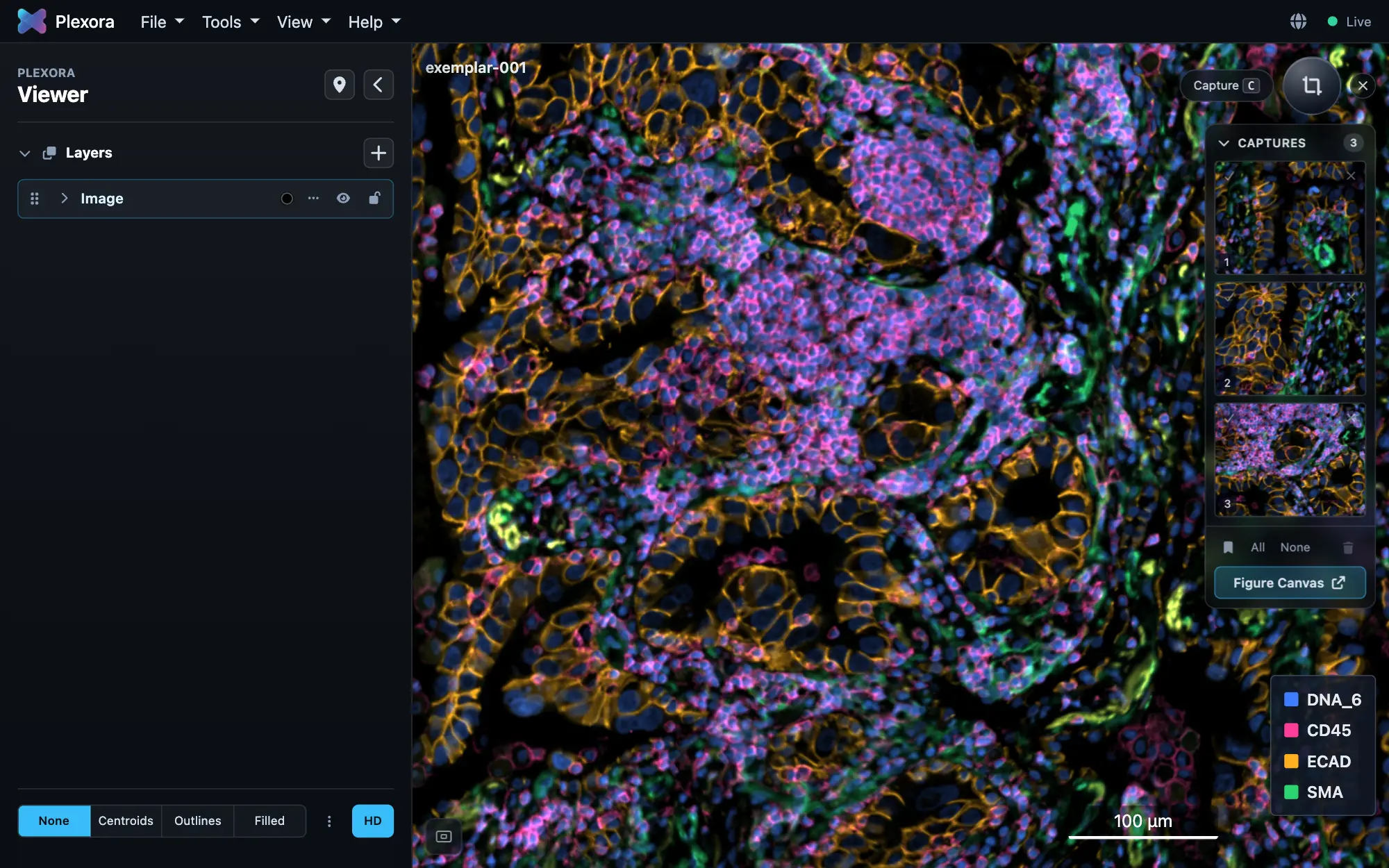
Open it: Tools › Figure Builder, or press ⌘K (Ctrl+K on Windows and Linux), to capture views. Your figures are under File › Open Figures…, or the Figures tab of the Samples page, with or without a sample open.
How to use it
Capture a view
Press the dock's orb, or C, to turn on capture mode, then drag a rectangle over the region you want. The zoom, channels, contrast and any overlay are captured with it.
Pick the captures
Each capture lands in the dock's strip. Click a thumbnail to go back to that view; tick it to use it in a figure.
Open the canvas
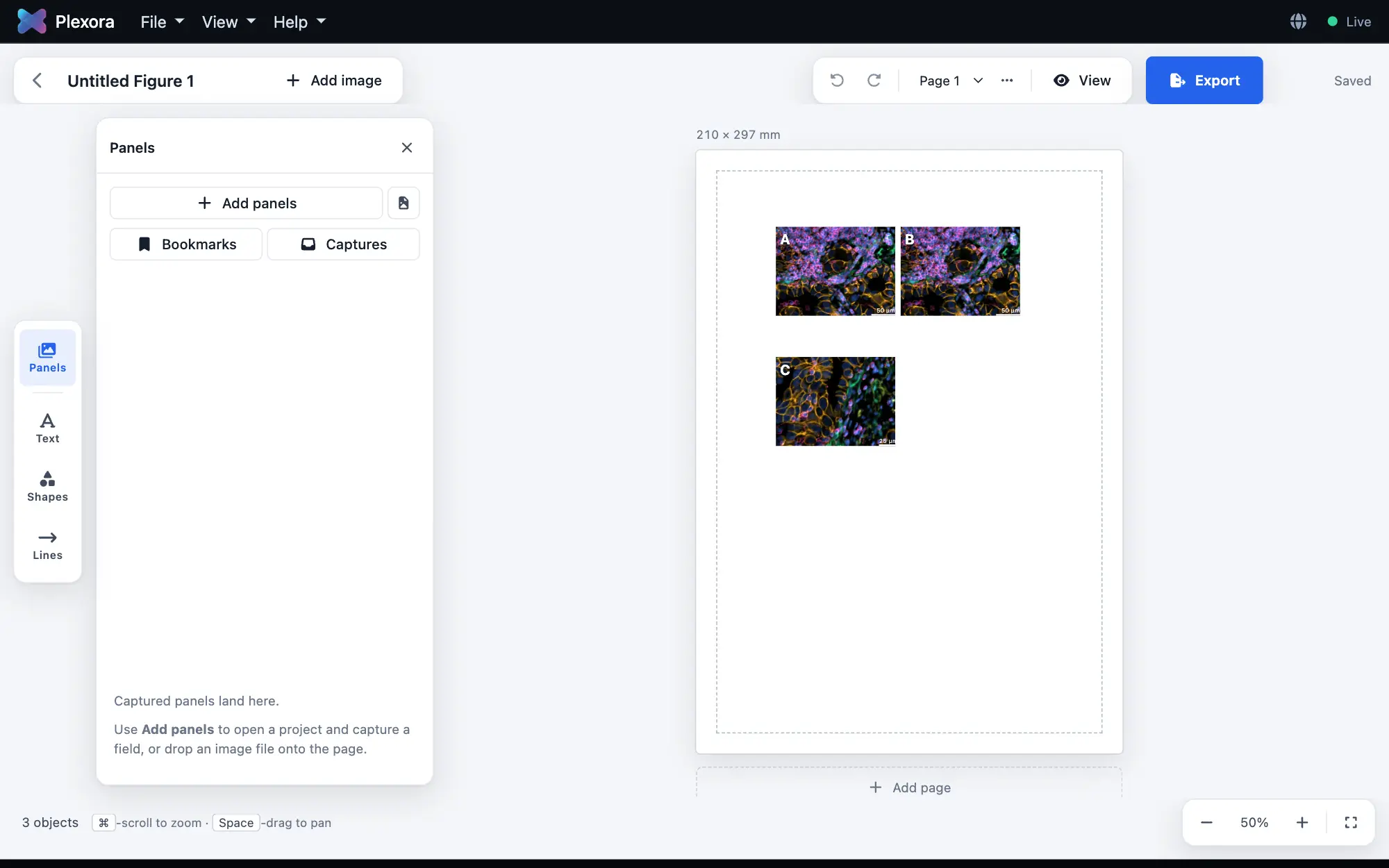
Press Figure Canvas and choose an existing figure or a new one. The viewer gives way to the Figure Canvas, with your captures as panels.
Arrange the page
Move, resize and re-crop panels. Add scale bars, text, shapes, lines and arrows. Everything is placed in millimetres, so the page prints at its true size.
Export
Press Export, choose PDF, TIFF or PNG and a resolution of 150, 300, 600 or 1200 DPI.
Tips
- A panel is re-rendered from the original image at export, at the resolution you ask for, not copied from the screen. Keep the source images where they are; moving them breaks the link.
- A scale bar reads the image's recorded pixel size. Without one, type a pixel size, or the bar is measured in pixels.
- Views you saved in the viewer with M are under Bookmarks on the canvas; Add to figure puts one straight on the page.
- Text uses Helvetica, Times or Courier, so every export format renders it the same way.
What it saves
A figure saves itself as you edit (the canvas corner shows Saving…, then Saved). It stores the layout, crops, text and shapes, never a copy of the pixels. Captures wait in their sample's strip until you use them.
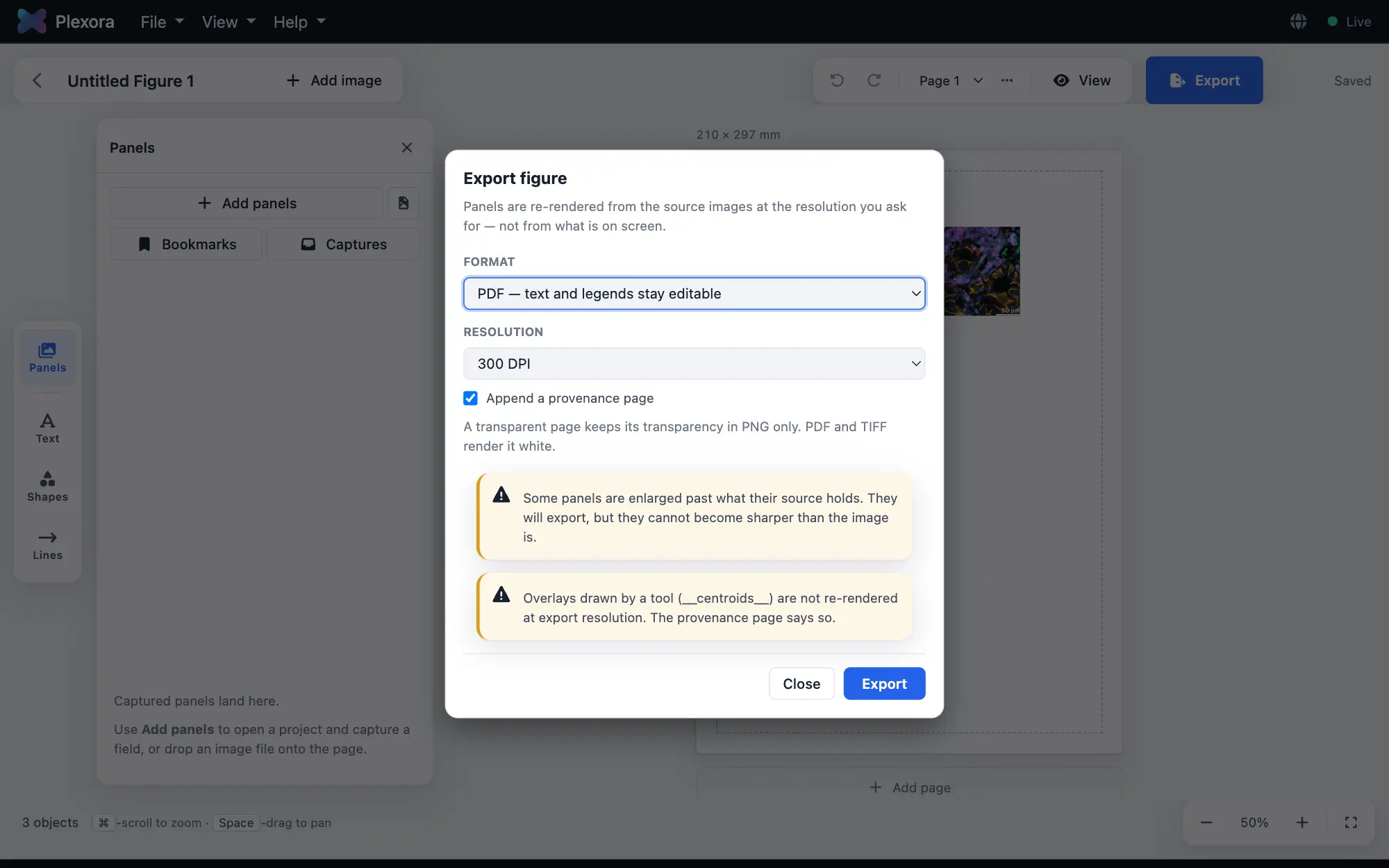
Export formats:
- PDF: text and legends stay editable.
- TIFF: flattened, for submission.
- PNG: flattened, for sharing; the only format that keeps transparency.
Append a provenance page adds a page recording what went into the figure. A single panel is limited to 16,000 pixels on its longest side; above that, export stops with a message instead of rendering.