Features
Layers
Show, hide, fade, reorder and add the images and masks drawn over a sample.
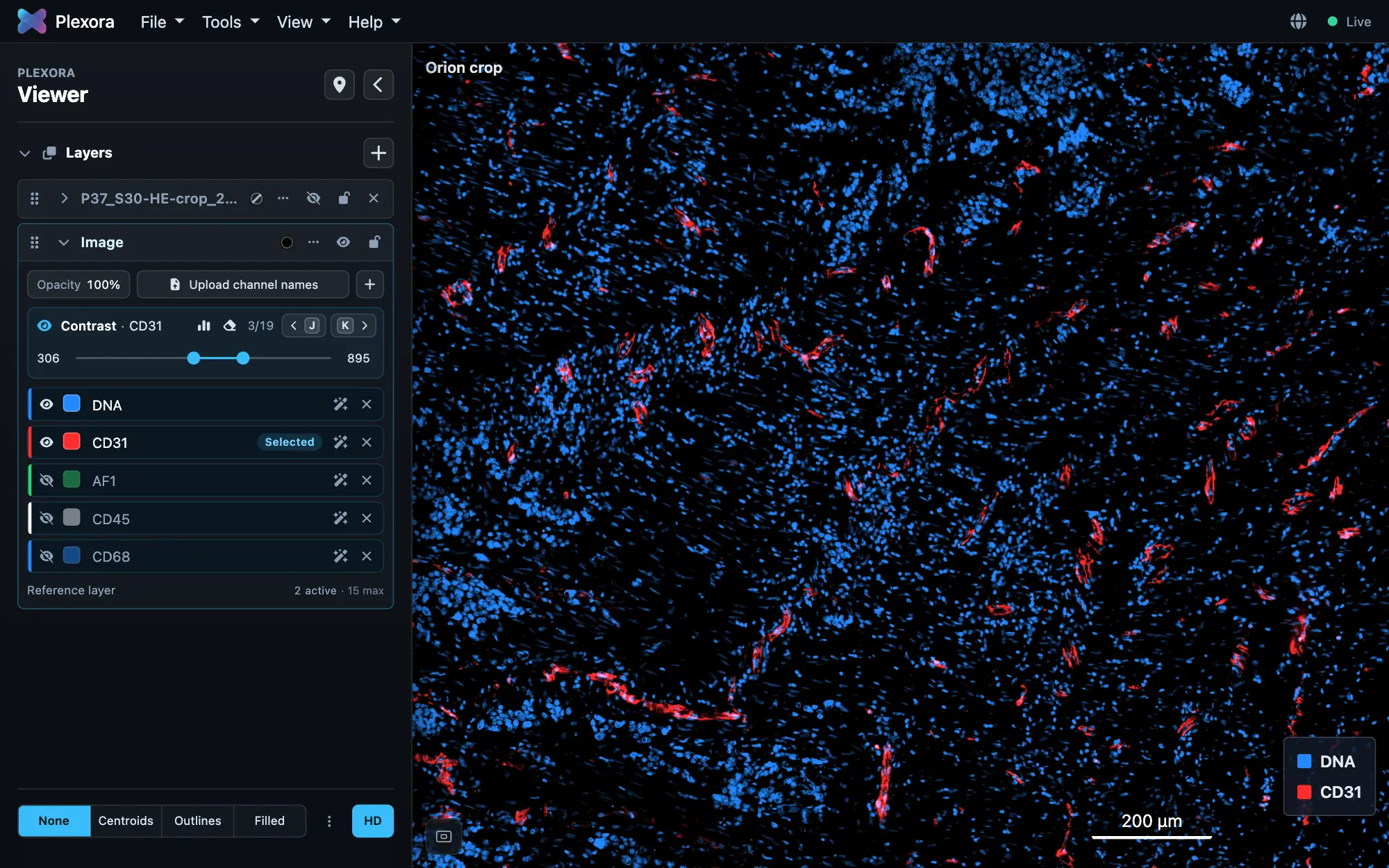
Layers in the sidebar lists everything the sample draws, one card each: the image itself, and anything added to it, such as a second image or a mask. The top card is drawn on top.
How to use it
Show or hide a layer
Click the card's eye. Hiding a layer keeps its settings.
Fade it
Click the opacity value on the card and drag the slider.
Reorder
Drag a card by its grip. Close a card's padlock to pin it so a drag cannot move it.
Add a layer
Click + beside the Layers heading (Add a layer to this sample). It opens the import dialog for this sample: add another image, a mask or a table.
Remove a layer
Click × and confirm. Plexora stops drawing it; the file stays where it is.
Tips
- Points a plugin draws stay above images whatever the order: a card can only be dragged among cards of the same kind.
- An added image's card says how it lines up with the first one: Registered, Aligned by assumption (no transform was given), or Cannot be drawn when its transform is one the viewer cannot show.