Projects and data management
Find, open, edit and delete samples, group them into datasets, and choose where Plexora keeps its projects, on the desktop and on the website.
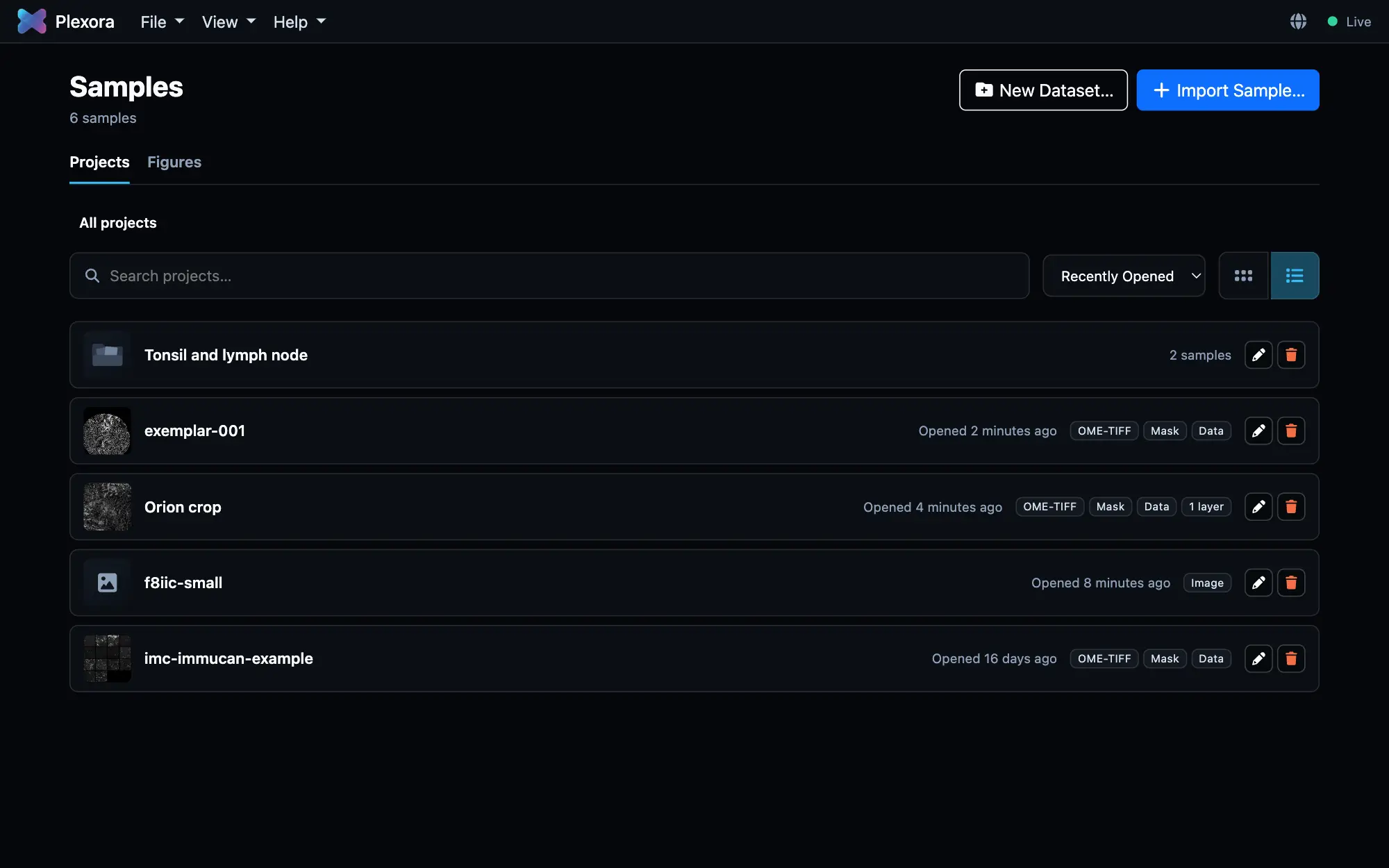
Every sample you import becomes a project. The Samples page lists them all, groups them into datasets, and is where you edit or delete one. Projects you make on your own computer are kept in Documents › Plexora, a workspace the desktop app and the Plexora website share; everything else Plexora makes is kept in its data directory, which you can move.
How to use it
Open the Samples page
Choose File › Samples… (⌘O, Ctrl+O on Windows and Linux). Search across every project, sort by Recently Opened, Date Created or Name, and switch between grid and list view. Click a sample to open it. To select samples without opening them, tick the box in a sample's corner, or choose Select all (⌘A) for every sample shown; Shift-click selects a range and Esc clears the selection.
Group samples into datasets
A dataset is a named folder of samples, such as a cohort or a TMA series. Use New Dataset… to make one, either empty or from a folder of images, masks and tables (see Opening images and datasets). Drag samples into it, or select several and choose Move to…. In the viewer, B and N step through the samples of the dataset you opened. A dataset made from folders that sort samples into groups, such as one folder per disease, shows a section for each group.
Edit or delete a sample
Each sample has Edit (the pencil) and Delete. Edit opens the sample's page, where you add or replace the mask or the cell table, say which columns are markers and which are metadata, and add layers. Select several samples to delete them, move them, or Remove from dataset together. Removing a sample from a dataset never deletes the sample. Deleting a dataset asks which you mean: Delete dataset only moves its samples back to the top level, and Delete dataset and its samples deletes them too.
Deleting a sample deletes what Plexora keeps for it: its folder in the data directory, with any cell table copied from a bucket, and the parts of its images and masks downloaded from a bucket. Your own files, and the files in the bucket, are never deleted. Image parts that another sample also uses stay until that sample is deleted too.
Check where your projects are kept
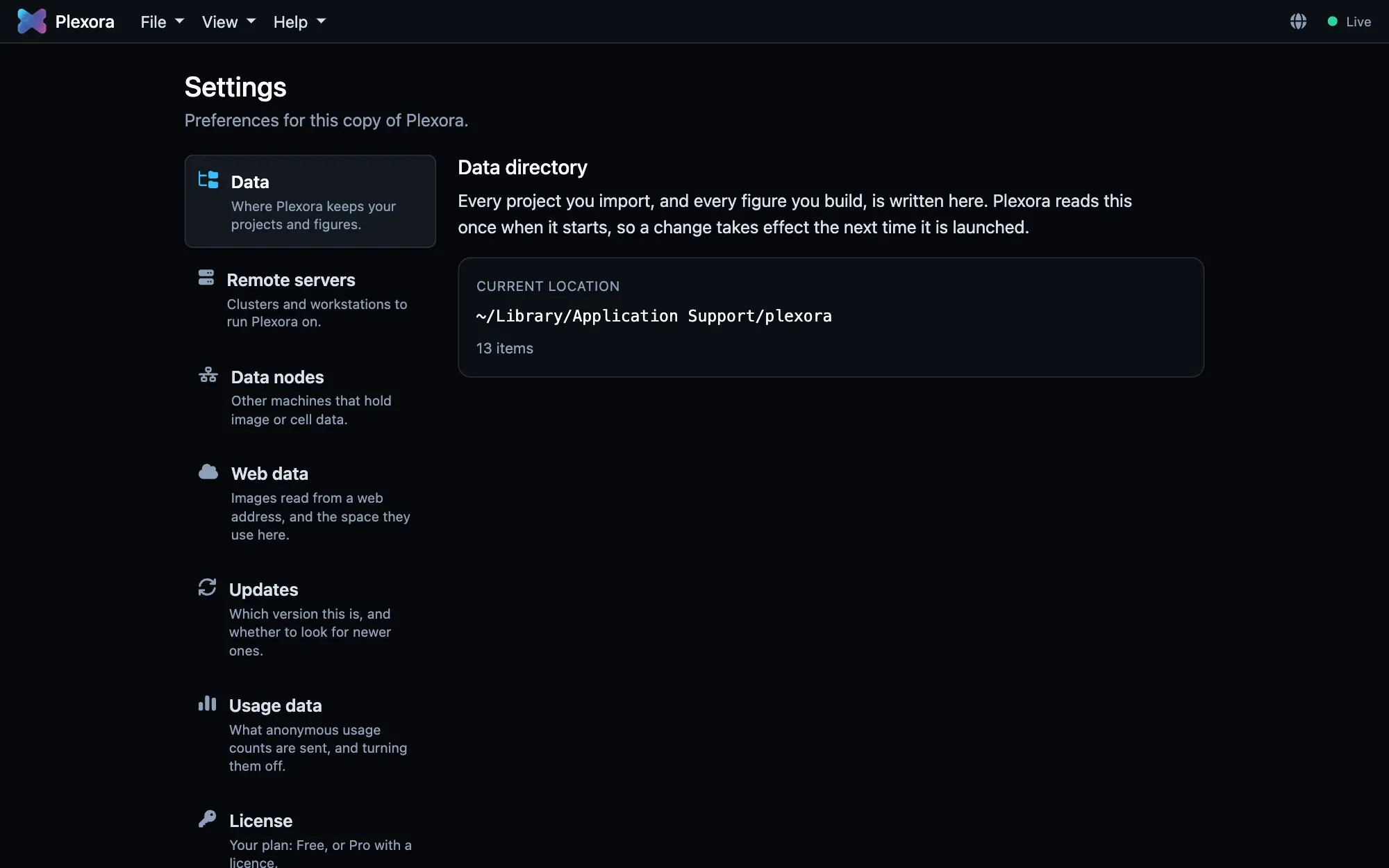
Open Settings › Data. The Locations list shows every folder Plexora lists projects from, with the number of projects in each and which one is the Default, where new projects are saved. To use another folder for new projects, choose Make default on its row. To move the data directory itself, use Move to a different directory below the list; you can leave existing projects where they are, copy them, or move them.
When projects come from more than one location, each sample on the Samples page shows a chip naming where it is kept, and a Location menu beside the sort menu shows one location's samples at a time (All locations shows everything).
Workspaces and locations
A workspace is a folder that holds a projects folder (your projects, datasets and figures), a pyramids folder, and a small file called workspace.json that gives the folder its identity. It is an ordinary folder: you can see it in Finder or File Explorer, back it up, and copy it to another computer. The desktop app and the website both read a workspace, so one folder can serve both.
The first time the desktop app runs, it creates Documents › Plexora as a workspace (workspace.json and projects), or adds workspace.json to the folder if you already have one. It never moves or deletes anything there.
Several locations
The Locations list in Settings › Data can hold more than one place:
- Add an existing Plexora workspace… lists a workspace you already have, such as one made by the website, copied from another computer, or sent by a colleague. Type its path or choose Browse…. Nothing in it is moved or changed; only a missing
workspace.jsonis written. - Make default sets where new projects are saved.
- Remove takes a workspace you added off the list. It never deletes files: the folder and its projects stay where they are, and you can add it again.
- Tidy up… appears on an older folder,
Documents/Plexora/Plexora, where earlier versions of the website kept projects one level too deep. Plexora lists it so nothing disappears, but new projects never go there. Tidy up shows exactly what moves where, then moves the projects (and pyramids) up one level into the workspace both apps use. It is unavailable while the destination already holds projects, so the two are never merged for you.
If a lab administrator has set the list of folders for the whole site, Settings says so and the list is read-only; Make default still works.
Plexora Lite: setting up on first use
The Plexora website (Plexora Lite) asks nothing when it loads. The first time you open a local image or save something, it shows a one-time setup that asks where to keep your work: your projects, annotations and figures. Your images are never copied there; they stay where they are.
Choose how to start
The setup asks whether you have used Plexora before. Choose I've used Plexora before to open a folder you already have, or I'm new to Plexora to choose a place for your work.
Choose a folder, or browser storage
- Use a folder on this computer (recommended) saves your work as files you can see, back up, and open in the desktop app. In Chrome and Edge, create a folder named Plexora inside Documents (with New Folder in the window that opens), select it, and allow access when the browser asks. The folder you pick is the workspace. A browser cannot be given Documents itself, which is why the setup has you make or choose a Plexora folder inside it.
- Use browser storage keeps your work inside this browser. It is simpler, but the browser may clear it when browsing data is cleared or space runs low, it does not show in Finder or File Explorer, and it is harder to open in the desktop app.
Firefox and Safari cannot save into folders on your computer, so they use browser storage. Chrome, Edge and the desktop app can use a folder.
Locate a folder you already have
If you have used Plexora before, choose Locate my Plexora folder and pick it, usually Documents › Plexora. Plexora recognises a workspace by its workspace.json, or by a projects folder with a config.json in it. A folder from an older version of the website, with the workspace inside a second Plexora folder (Documents/Plexora/Plexora), is used where it is, and nothing is moved. A folder that is not a workspace yet can be set up as one: Plexora adds its own files and changes nothing else.
You are not asked again in that browser. If you choose a folder, the browser asks once to allow editing; choose Allow on every visit if it asks again on a later visit and it stops asking.
Reconnecting
Browsers sometimes forget the permission to a folder. When that happens the setup shows We couldn't reconnect to your Plexora folder; choose Reconnect folder and allow access. In Settings › Data, the same Reconnect button is on the folder's row. If the folder has moved or been deleted, choose Choose another folder.
Settings on the website
On the website, Settings › Data has a Where your projects are list: the default folder (or This browser) and any folders you add.
- Add a folder… lists another workspace beside the default one. Plexora offers to set the folder up as a workspace if it is not one yet.
- Reconnect on a row opens a folder the browser asked permission for again.
- Make default and Remove work as on the desktop; Remove never changes the folder.
- Save on this computer…, on the This browser row, moves your work from browser storage into a folder.
- Set up again runs the first-use setup again, for example to move from a folder back to browser storage.
Where things are saved
| What | Where |
|---|---|
| Your image, mask and table files | Where they were. Plexora reads them in place and never changes them. |
| Projects made on this computer, with their gates and regions | Documents/Plexora/projects, which the website opens too. |
| Datasets that hold one of those projects | Documents/Plexora/projects, so the website shows the same groups. |
| Projects made before, other datasets, settings | The data directory. |
| Converted masks, image pyramids and other files Plexora can build again | The data directory, in each project's own folder. |
| Figures and captures | The data directory's figure library, outside any one project. |
The default data directory is ~/Library/Application Support/plexora on macOS, %LOCALAPPDATA%\plexora on Windows and ~/.local/share/plexora on Linux. A browser can never open that folder, which is why projects go in Documents. If you set a data directory yourself, or Plexora runs on a server, new projects stay in the data directory.
On the website, the first-use setup (above) chooses a folder or browser storage.
Tips
- Converted masks and image pyramids can be large. On a cluster with a small home quota, or a laptop with a small system drive, move the data directory to a bigger disk.
- A project you expected is missing? It is almost always in another data directory. Settings › Data directory shows which one is in use.
- A lab can share read-only projects from a common folder. They appear marked Shared, and gates, regions and figures you make on one are saved in your own directory. Settings lists shared folders; adding one is done from a terminal (below).
From the command line
Everything above is done in Plexora itself; you never need a terminal for it. If you prefer one, these do the same:
| To | Run |
|---|---|
| See which data directory is in use, and why | plexora where |
| Use another data directory | plexora config set data-dir /path/to/dir |
| Add a lab's shared, read-only folder | plexora config set shared-dirs /lab/shared/plexora |
See plexora config for every setting.