Opening images and datasets
Open an image from this computer or a server, import a sample with its mask and table, or build a dataset from a folder.
Plexora reads your files where they are: on this computer, a mounted share or a connected server. Nothing is copied or converted on disk except the tiles it needs for viewing. There are three ways in, depending on how much you are bringing.
How to use it
One image: the home screen
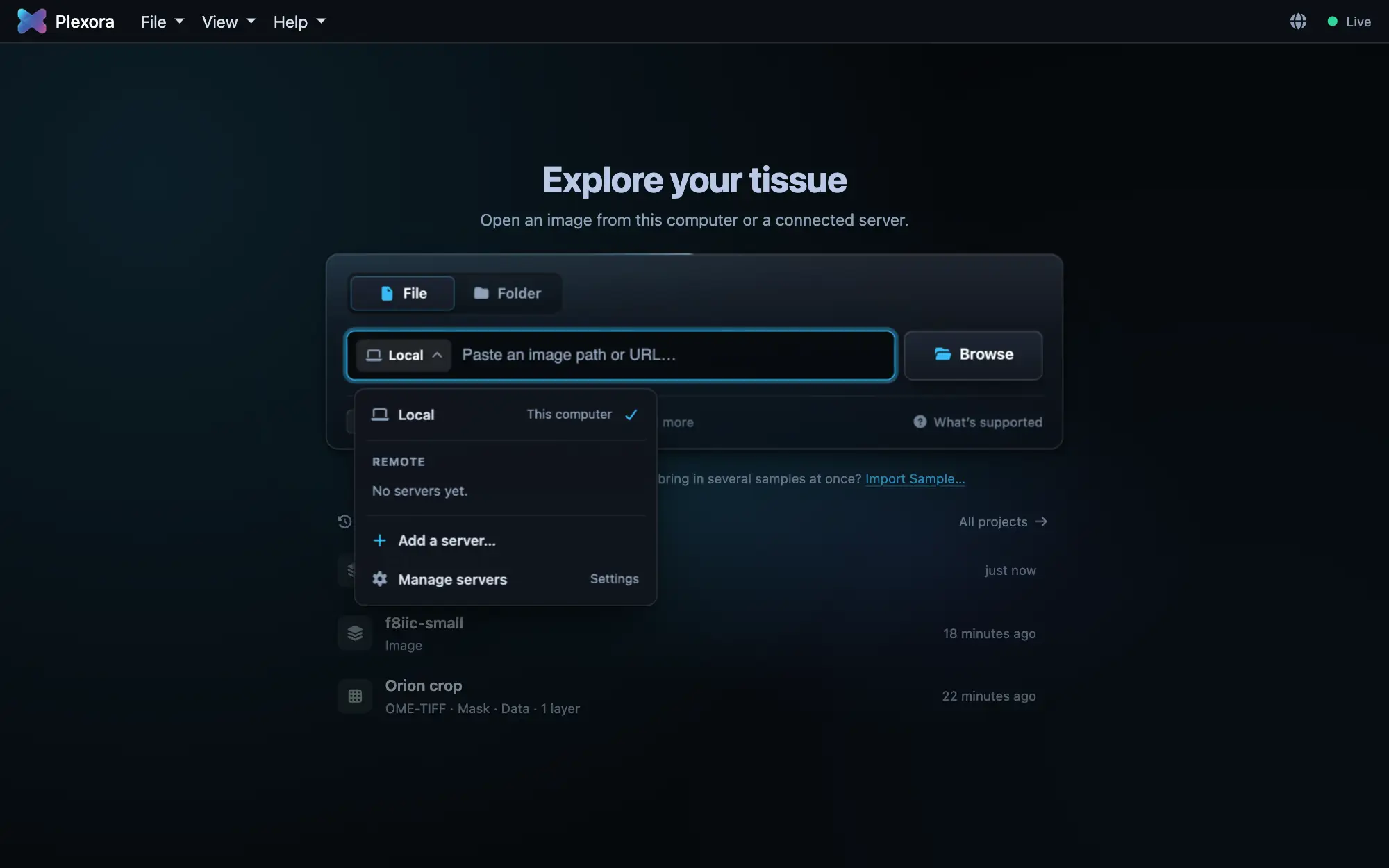
Paste a path or URL and press Load, or press Browse. File or Folder above the box sets what Browse opens. The Local chip switches to a connected server, or Add a server….
While an image opens, the viewer shows a low-resolution preview of its first channel (a brightfield slide in its own colours), the file's channel names in the sidebar, and the steps of the open. The full-resolution image replaces the preview when it has loaded. The preview covers OME-TIFF and TIFF, QPTIFF, the TIFF-based slides (.svs, .ndpi, .scn, .bif) and OME-Zarr, a folder or a web address. In a browser, a store at a web address shows a preview only when its host lets web pages read it.
An image with its mask and table: Import Sample…
File › Import Sample… (⌘I, Ctrl+I on Windows and Linux) takes several files or a folder, shows one row per file with what it was read as, and lets you name the sample and put it in a dataset. You can also drag files onto the dialog.
A folder of samples: New Dataset…
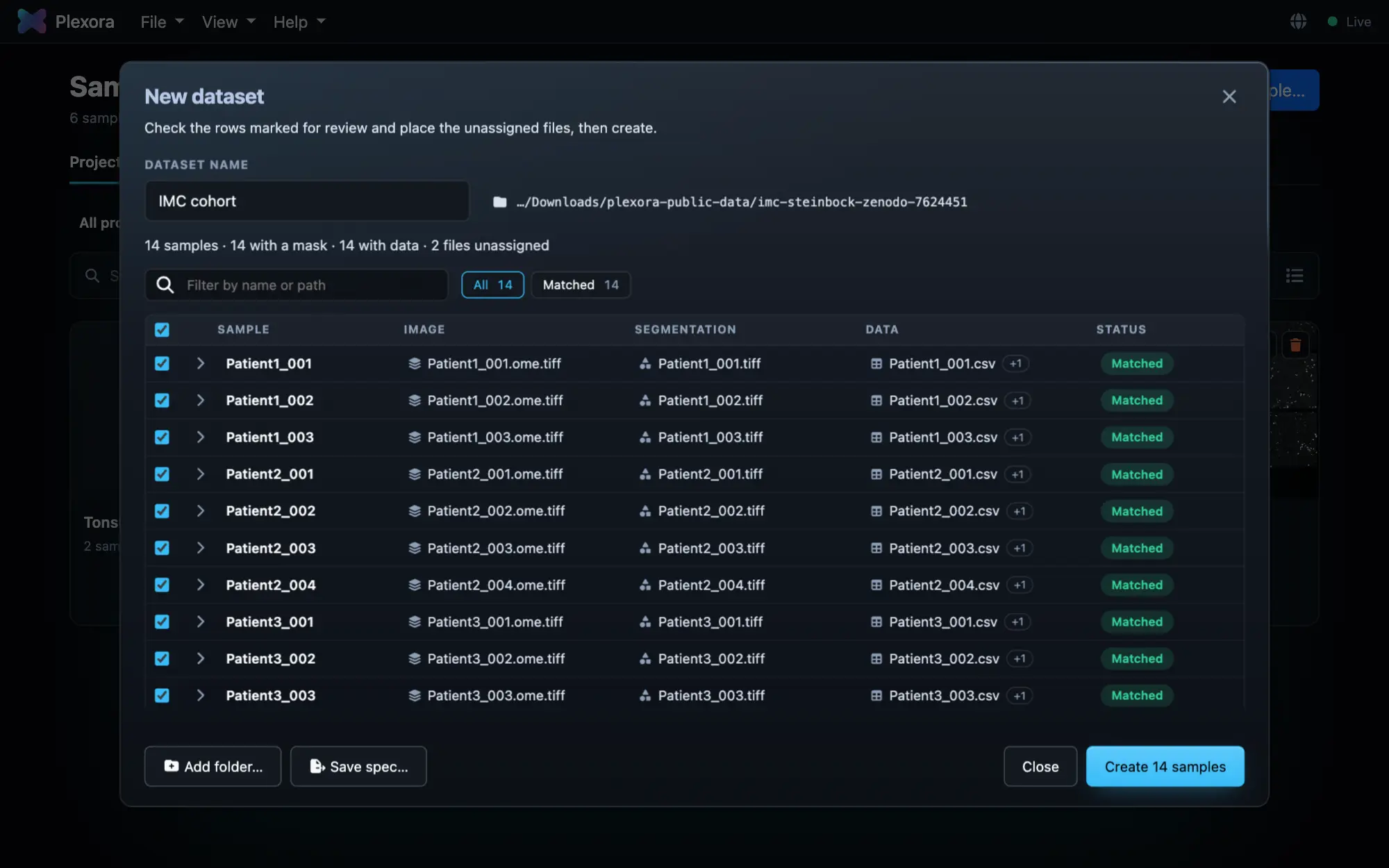
On the Samples page, choose New Dataset…, pick the folder that holds a cohort and press Scan folder. Plexora matches every mask and table to its image by file and folder names and shows the plan as a table. Fix any row, then press Create (it says how many samples).
A cohort in a bucket
Paste the bucket's address on the home page, in Import Sample or in New Dataset, for example s3://lin-2023-orion-crc/data. Plexora lists it, reads each image's header, and shows the samples it found in New Dataset's table, every one ticked, under a name taken from the bucket. Untick the samples you do not want, then press Create. Only the headers are read before then.
- A folder holding one sample's images of different kinds, such as a multiplex slide and its H&E, becomes one sample named after the folder, with the H&E as a layer.
- Samples sorted into folders, for example by disease (
CRC/,Melanoma/), are shown in a section per folder on the Samples page. - Images and masks are read from the bucket as they are viewed, and only the parts on screen are downloaded. A mask that is not already a tiled pyramid is converted the first time its sample is opened.
- Cell tables are not copied when the dataset is made. In the viewer, Add Data offers each sample's table and copies it when you press it.
- A folder with one sample in it opens as that sample.
Add to a sample you already have
In the viewer, + on Layers adds an image, mask or table to the open sample. See Layers.
What Plexora opens
| Kind | Formats |
|---|---|
| Multiplexed images | OME-TIFF and TIFF (including z-stacks), QPTIFF, OME-Zarr, Imaris .ims, DICOM |
| Brightfield slides | .svs, .ndpi, .scn, .bif, plus .mrxs and .svslide with pip install "plexora[wsi]" |
| Plain images | PNG, JPEG |
| Segmentation masks | A label TIFF or OME-TIFF, 2-D or 3-D, the same size as its image |
| Cell tables | CSV, TSV, Parquet, AnnData .h5ad |
| Stores | SpatialData .zarr (images, labels, points and a table) |
Images can also be read from a web address, S3, Google Cloud Storage or Azure, one at a time or a whole bucket folder at once. The full list is in Supported formats. Xenium and Visium run folders are not covered here.
Tips
- A mask must have the same width and height as its image.
- A large image saved without a pyramid (a flat TIFF) opens slowly, so Import Sample offers to build a pyramidized copy once, beside the original or in the project, and opens that copy. A 16-bit image's copy is compressed: about 75% smaller than an exact copy, every pixel within its own noise. Turn Compress the copy off in that question, or Compress pyramid copies in Settings › Data, for an exact copy. Your original is never changed.
- A private bucket needs its access set up first in Settings › Web data. An
https://address in front of a bucket cannot be listed, so paste the bucket's owns3://orgs://address to open a folder of samples. - Dropping a file onto the import dialog in a browser uploads it (up to 64 MB). For a large image, choose it with Browse or paste its path, so it is read in place. A file dropped somewhere that does not take one is refused, so the browser does not open it in place of Plexora.
- In the desktop app you can drag a file onto the window, or open
.svs,.ndpi,.scn,.mrxs,.qptiffand.h5adfiles with Plexora from your file manager. - CosMx and MERSCOPE runs have no reader yet. Export the image and the cell table and import them as files.